First let's install coturn. If you are on freshly installed server, let's update the repository. and reboot the server as well.
> sudo apt-get -y update
> sudo apt-get upgrade
> sudo reboot

Let's install. coturn starts automatically once installed, so let's stop it as well.
> sudo apt-get install coturn
> sudo systemctl stop coturn

We need SSL certificate to configure out TURN server, so let's generate the SSL certificate using Let's Encrypt.
> sudo apt install certbot python3-certbot-nginx

Now, let's obtain the SSL certificate. Remember before this step, you should point your domain to this server. To do so find the IP address of this server and create A record on your DNS server for name stun and turn.
Remember to Enable port 80 and 443 on inbound security rules.

> sudo certbot --nginx -d stun.[your domain].com -d turn.[your domain].com
> sudo certbot renew --dry-run

The first command obtain the certificate for the domains and place them on
cert=/etc/letsencrypt/live/stun.[your domain].com/cert.pem
pkey=/etc/letsencrypt/live/stun.[your domain].com/privkey.pem

Let's get back to coturn, we have installed and stoped the coturn, Let's enable TURN server in the configuration file of coturn.
> sudo nano /etc/default/coturn
and remove the # before TURNSERVER_ENABLED and press Ctl+O (write).

Let's work on etc/turnserver.config
backup first
> sudo  mv /etc/turnserver.conf /etc/turnserver.conf.bk
edit it
> sudo nano /etc/turnserver.conf
# /etc/turnserver.conf
# STUN server port is 3478 for UDP and TCP, and 5349 for TLS.
# Allow connection on the UDP port 3478
listening-port=3478
# and 5349 for TLS (secure)
tls-listening-port=5349

# Require authentication
fingerprint
lt-cred-mech

# We will use the longterm authentication mechanism, but if
# you want to use the auth-secret mechanism, comment lt-cred-mech and
# uncomment use-auth-secret
# Check: https://github.com/coturn/coturn/issues/180#issuecomment-364363272
#The static auth secret needs to be changed, in this tutorial
# we'll generate a token using OpenSSL
# use-auth-secret
# static-auth-secret=replace-this-secret
# ----
# If you decide to use use-auth-secret, After saving the changes, change the auth-secret using the following command:
# sed -i "s/replace-this-secret/$(openssl rand -hex 32)/" /etc/turnserver.conf
# This will replace the replace-this-secret text on the file with the generated token using openssl.

# Specify the server name and the realm that will be used
# if is your first time configuring, just use the domain as name
server-name=[your domain].com
realm=[your domain].com

# Important:
# Create a test user if you want
# You can remove this user after testing
user=testing:password123

total-quota=100
stale-nonce=600

# Path to the SSL certificate and private key. In this example we will use
# the letsencrypt generated certificate files.
cert=/etc/letsencrypt/live/stun.[your domain].com/cert.pem
pkey=/etc/letsencrypt/live/stun.[your domain].com/privkey.pem

# Specify the allowed OpenSSL cipher list for TLS/DTLS connections
cipher-list="ECDHE-RSA-AES256-GCM-SHA512:DHE-RSA-AES256-GCM-SHA512:ECDHE-RSA-AES256-GCM-SHA384:DHE-RSA-AES256-GCM-SHA384:ECDHE-RSA-AES256-SHA384"

# Specify the process user and group
proc-user=turnserver
proc-group=turnserver
the above conf is taken from https://ourcodeworld.com/.


> sudo systemctl start coturn

Remember to Enable port 3478 and 5349 for TCP and UDP incoming connection.

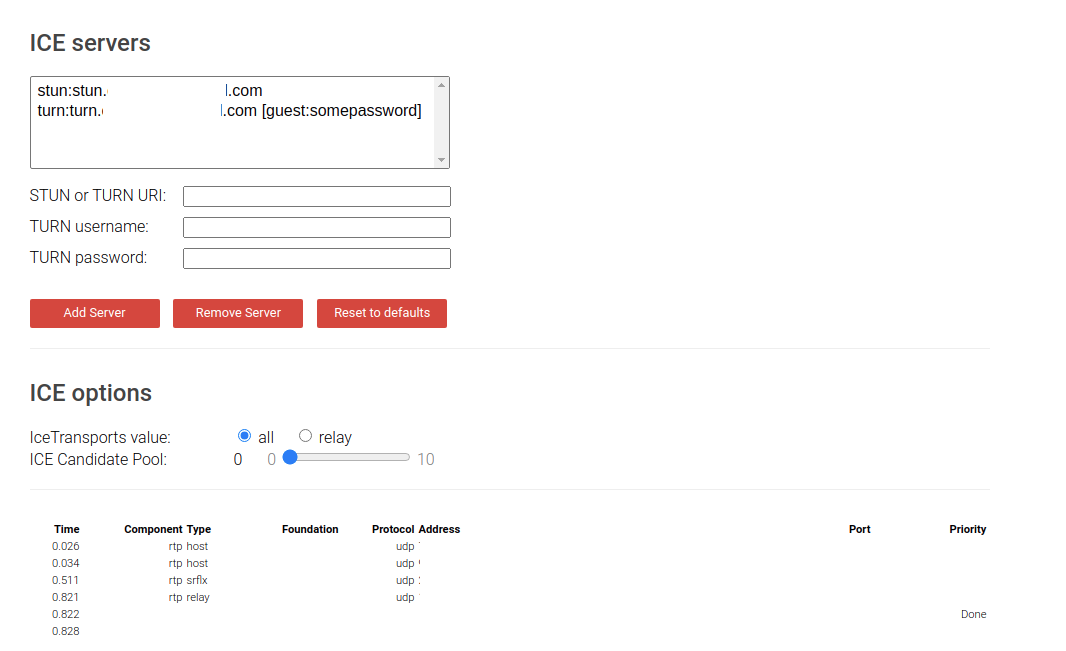
We can test our STUN and TURN server from the tool on Trickle ICE.
https://webrtc.github.io/samples/src/content/peerconnection/trickle-ice/

If you test a STUN server, it works if you can gather a candidate with type "srflx". If you test a TURN server, it works if you can gather a candidate with type "relay".